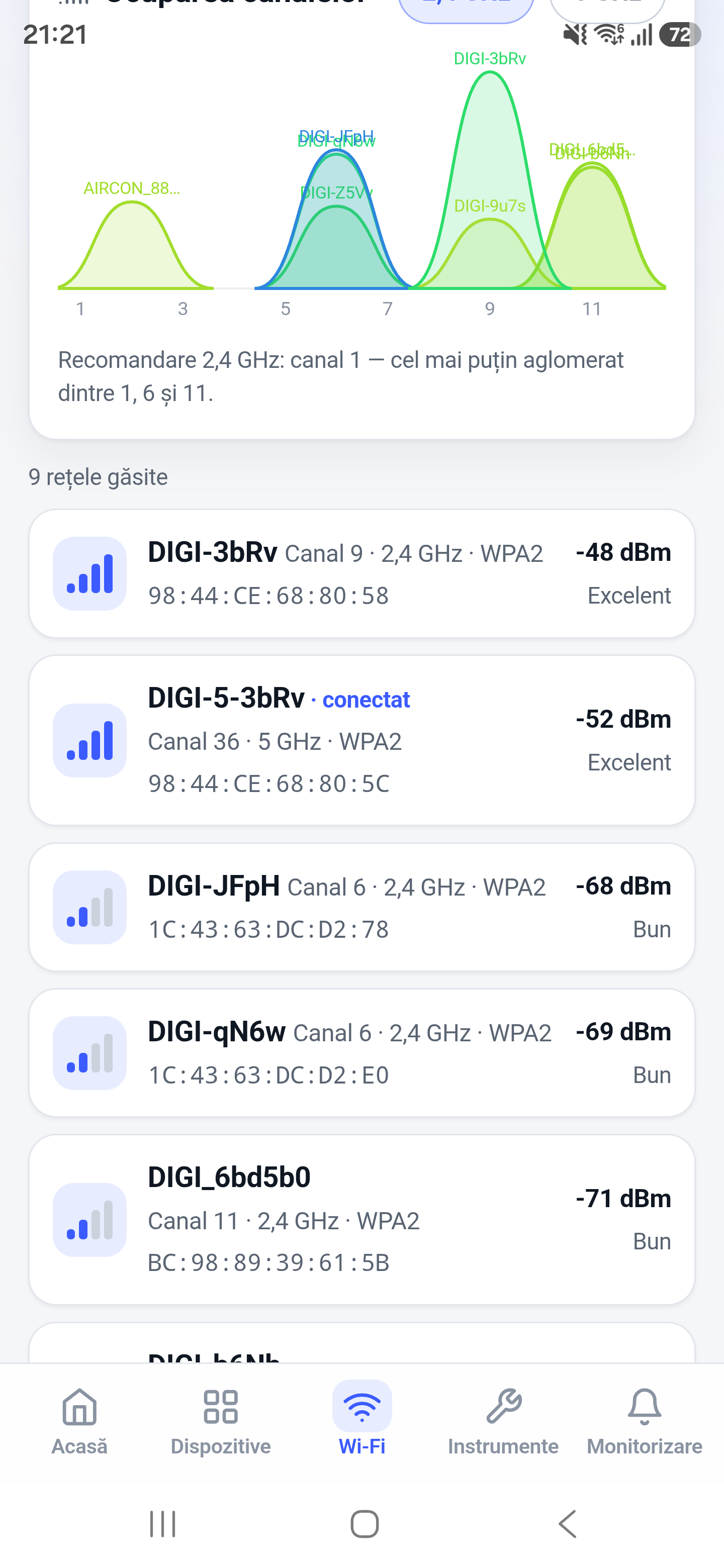
The WiFi scanner helps you inspect the network currently connected to your phone and compare nearby access points. It is useful when a connection is unstable, coverage changes between rooms, or several networks compete for the same channels.
How it works
Android provides scan results that include radio information reported by nearby access points. Network Toolkit organizes those results so you can compare signal levels and channel occupancy. Scan timing and visibility remain subject to Android permissions and platform throttling.
How to use it in Network Toolkit
- Connect the phone to WiFi and open the WiFi analysis tool.
- Grant the nearby WiFi or location permission requested by Android.
- Run a fresh scan, then compare signal levels and occupied channels.
- Repeat the scan in the problem location before changing router settings.
What information you can see
- Current WiFi connection details
- Nearby network names when Android exposes them
- Signal levels and channel information
- A channel-occupancy view for comparison
Common use cases
- Compare coverage between rooms
- Identify crowded WiFi channels
- Check whether an access point is visible
- Collect evidence before repositioning a router
Limitations and Android considerations
Related network tools
Network Scanner for Android, IP Scanner for Android, Ping Tool for Android can help confirm the result from another angle.
Frequently asked questions
Can Android scan WiFi without connecting?
Android can report nearby networks when the required permissions and device settings are enabled, but the exact results depend on the Android version and manufacturer.
What does a stronger signal mean?
A signal value closer to zero dBm is stronger. For example, -55 dBm is generally stronger than -75 dBm.
Why do scan results stop updating?
Android may throttle frequent scans. Wait briefly, keep the app visible, and confirm that the required permissions are enabled.