
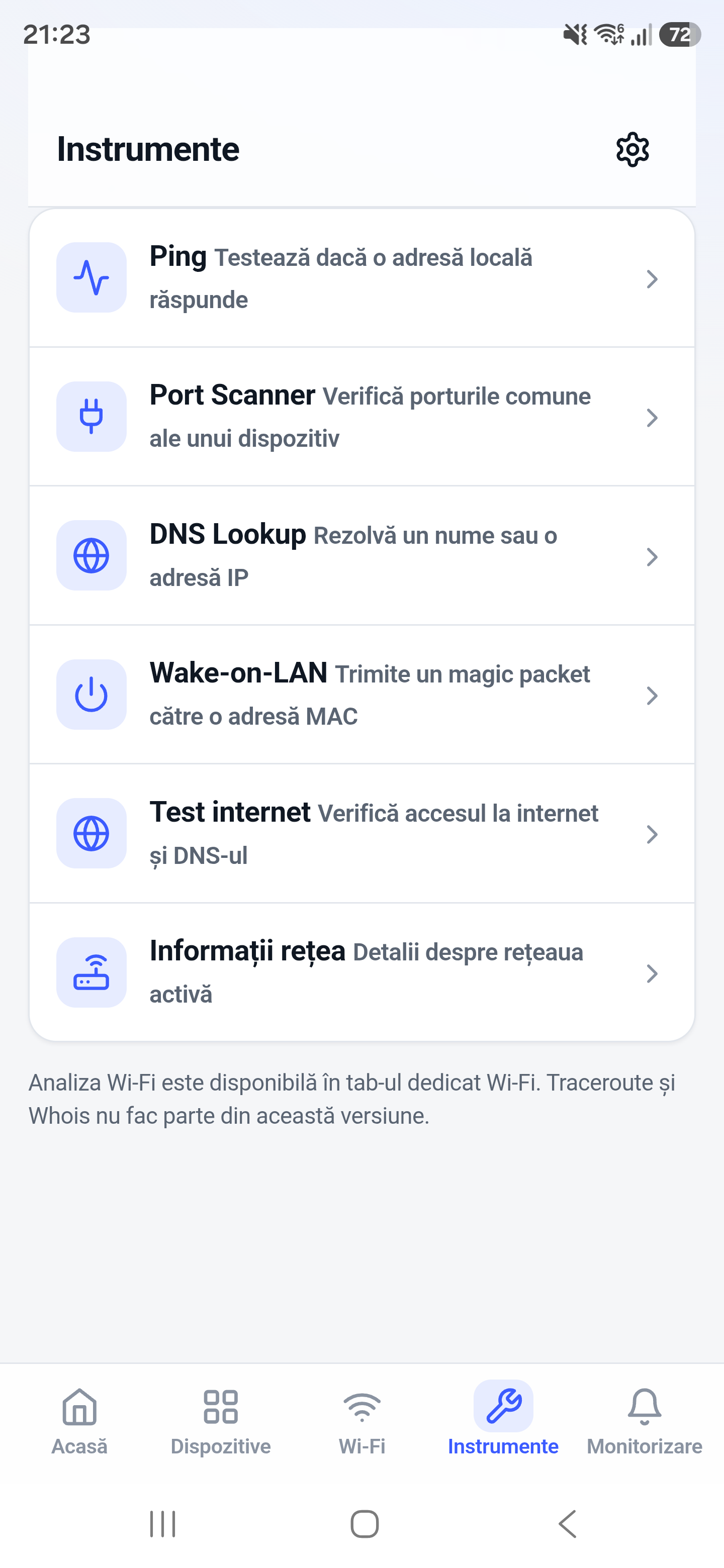
Ping is a fast first check for whether a local host responds and how long packets take to return. Repeated samples help distinguish a total outage from intermittent latency or packet loss.
How it works
Ping sends ICMP echo requests and measures replies. Round-trip time reflects the complete path at that moment, including WiFi conditions, routing, device load, and response handling.
How to use it in Network Toolkit
- Enter a reachable local IPv4 target.
- Start ping and collect more than one reply.
- Compare minimum, maximum, and changing response times.
- If replies fail, verify the address and continue with route or port checks.
What information you can see
- Per-reply round-trip time
- Successful and failed replies
- Packet-loss indicators
- Latency variation across the sample
Common use cases
- Check whether a router or NAS is online
- Compare WiFi quality in different locations
- Confirm an outage before testing ports
- Watch for intermittent local packet loss
Limitations and Android considerations
Related network tools
Network Scanner for Android, Port Scanner for Android, Traceroute for Android can help confirm the result from another angle.
Frequently asked questions
Does a failed ping mean the device is offline?
No. Firewalls commonly block ICMP even when web, SSH, or other services are available.
What is a good ping time on WiFi?
Local results are often only a few milliseconds, but radio congestion and device power saving can create spikes. Compare against your own normal baseline.
What causes packet loss?
Weak WiFi, interference, overloaded devices, routing issues, and ICMP rate limiting are common causes.