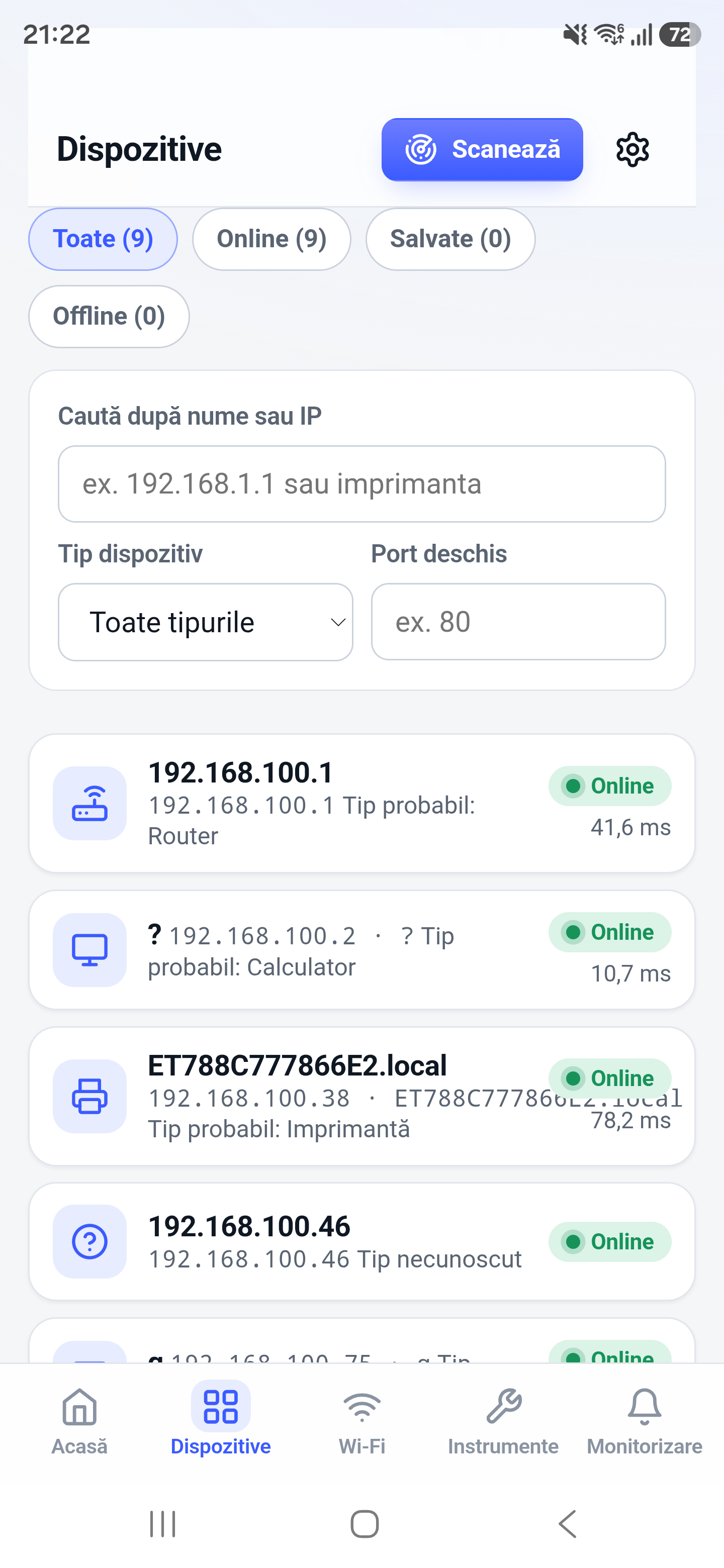
The network scanner discovers devices reachable on the local IPv4 network. It can help answer who is connected to a WiFi network and provide starting points for ping, port, and identification checks.
How it works
A local scan tests addresses in the current subnet and combines reachable-host observations with details available to the phone. Devices can ignore probes or sleep, so a scan is a useful snapshot rather than a complete security inventory.
How to use it in Network Toolkit
- Connect to the local WiFi network you want to inspect.
- Open device discovery and start a local network scan.
- Wait for the subnet pass to finish before comparing results.
- Open an interesting device and continue with the relevant diagnostic tool.
What information you can see
- Reachable IPv4 addresses
- Host names when resolvable
- Hardware or vendor hints when available
- A device list that can lead into further diagnostics
Common use cases
- Find a printer, NAS, camera, or IoT device
- Review devices visible on home WiFi
- Locate an address before opening an admin page
- Confirm that a newly connected device joined the LAN
Limitations and Android considerations
Related network tools
IP Scanner for Android, Ping Tool for Android, Port Scanner for Android can help confirm the result from another angle.
Frequently asked questions
Does a scan show every connected device?
Not always. Sleeping devices, firewall rules, guest-network isolation, and short-lived clients can make a device temporarily invisible.
Is scanning my own WiFi safe?
Routine discovery on a network you own or administer is generally low impact. Only scan networks where you have permission.
Why is a device listed without a name?
A name depends on DNS, mDNS, NetBIOS, or other discovery data. Many devices expose only an IP address.